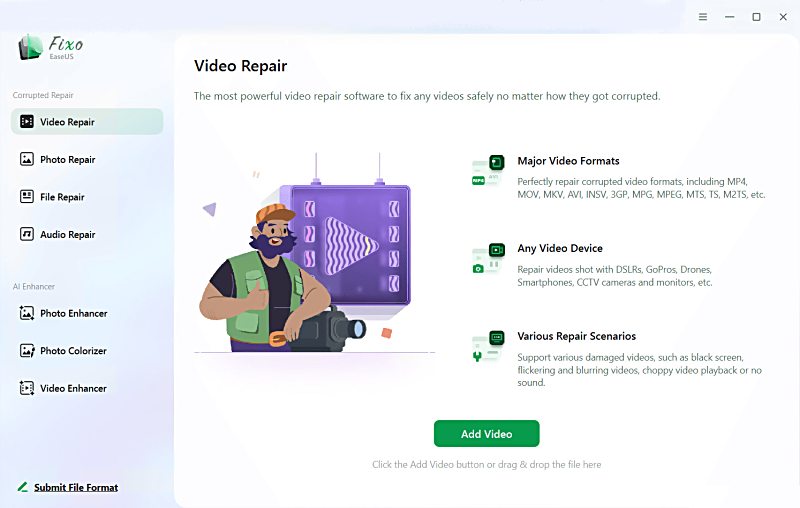
EaseUS Fixo is a desktop tool that helps you repair video files that are damaged, corrupted, or won't play. It is made to fix common problems like broken headers, choppy playback, missing audio, or files corrupted during transfer. If you need to repair video files from phones, cameras, drones, or memory cards, EaseUS Fixo aims to get those files back to a playable state quickly and safely.
Many people and pros can use this software. Casual users who lost a holiday clip or a phone recording can try the free preview and then repair the file. Content creators and videographers who work with DSLRs, GoPros, or drones often face corrupted footage after a failed write or sudden power loss - this tool targets those cases. Editors and IT staff who need to recover client footage or archive material can use the software's batch repair and advanced/reference repair mode for tougher jobs.
- What it repairs: broken headers, frame errors, audio/video sync, truncated files.
- Common sources: phones, action cameras, DSLRs, drones, memory cards, USB drives.
How it helps: you add the broken file, run the repair, and preview the result. For severe corruption, the Advanced Repair option uses a healthy reference file from the same camera and format to guide reconstruction. This makes the tool useful when simple repairs fail.
Table - Typical users and reasons to use EaseUS Fixo
| User type | Why they use it |
|---|---|
| Casual phone users | Recover holiday clips, voice + video recordings |
| Content creators | Fix DSLR/GoPro footage corrupted mid-recording |
| Drone pilots | Repair footage lost from abrupt shutdowns or SD errors |
| Editors / IT | Batch repair multiple files; use advanced reference repair |
If you frequently work with video and need a simple way to repair video files, EaseUS Fixo is worth trying. It often saves time and stress versus manual fixes or complete re-shoots. Try the free trial to preview repairs, and always keep backups to reduce future risk.
Key features at a glance
EaseUS Fixo packs several features aimed at people who need to repair video files fast and with little fuss. Below are the main tools and how they help when you need to repair video.
Supported formats and devices
EaseUS supports many common video formats and captures. This makes it useful whether your clips come from phones, cameras, or action cams.
- Formats: MP4, MOV, AVI, MKV, MTS, 3GP and other popular containers.
- Codecs: Works with typical H.264/H.265 and other mainstream codecs (support varies by file).
- Devices: Smartphones, DSLRs, mirrorless cameras, GoPro/action cameras, drones, dashcams, memory cards, USB drives.
Table - Typical sources and file types
| Source | Common formats |
|---|---|
| Phones | MP4, MOV |
| DSLRs & mirrorless | MOV, MP4, MTS |
| GoPro / action cams | MP4, HEVC |
| Drones | MP4, MOV |
| Legacy devices | AVI, 3GP |
Repair modes - standard vs. advanced/"reference" repair
EaseUS offers two main repair approaches. Use the simple one first, then Advanced when problems are severe.
- Standard Repair: Automatic scan and fix for headers, frame errors, and simple corruption. Fast and good for most damaged files.
- Advanced (Reference) Repair: Uses a healthy sample file from the same camera/model and format as a reference. This helps rebuild complex structures and recover more data when standard repair fails.
Tip: For the best Advanced Repair results, pick a reference file with the same resolution, codec, and camera settings.
Batch repair, preview, and export options
EaseUS is built to handle single files or many at once.
- Batch Repair: Add multiple corrupted files and repair them together. Saves time for editors or IT staff with many damaged clips.
- Preview: You can preview repaired clips before saving. The free trial often allows previews so you can confirm success without paying.
- Export: Repaired files export to common formats and to a location you choose. The tool creates new files and does not overwrite originals by default-so your source files stay safe.
Platform availability (Windows, macOS, online vs desktop)
EaseUS Fixo is primarily a desktop app.
- Desktop: Available for Windows and macOS with a native GUI.
- Online: Some vendors offer online repair services, but EaseUS's main product is desktop-based for local processing. Local repair keeps files on your machine and is usually faster and safer for large clips.
- System needs: Typical modern Windows or macOS hardware; large repairs benefit from more RAM and disk space.
Bold takeaway: EaseUS Fixo supports many formats and devices, offers both quick and advanced repair modes, includes batch and preview features, and runs as a desktop app on Windows and macOS. Use the standard mode first, and switch to Advanced/Reference Repair when files are severely damaged.
How EaseUS Fixo works - step-by-step
EaseUS Fixo uses a clear, hands-on process to repair video files. The tool aims to make repair video tasks simple so you can get back to editing or watching clips quickly. Below are the usual steps, when to use Advanced Repair, and practical tips to raise your chance of success.
Typical three-step workflow (add → repair → preview/save)
- Add files: Click "Add" and select one or more corrupted video files from your drive or memory card. The app shows file names and sizes.
- Repair: Press "Repair" to run the automatic scan. The software checks headers, frames, and audio streams and tries to fix common errors. This is the fast, default method for most issues.
- Preview & Save: After repair, use the preview window to check playback and audio. If the result looks good, export the repaired file to a safe folder. The app creates a new file and keeps the original unchanged.
- Bold tip: Always preview before saving to avoid overwriting or wasting time on bad fixes.
When to use Advanced Repair and how to prepare reference files
Use Advanced Repair when the standard repair fails or the preview still shows corruption (missing frames, heavy glitches, or audio breakups).
- Choose a reference file from the same camera or phone model. The reference should:
- Be recorded with the same resolution, frame rate, and codec.
- Come from the same storage type (same SD card type can help).
- Be a short, healthy clip (10-30 seconds is fine).
- How it works: EaseUS analyzes the good file's structure and applies that pattern to rebuild the damaged file's container and index data. This often recovers clips that simple fixes cannot.
Practical tips to improve success rate (source file selection, storage, avoiding rewrites)
- Stop using the storage device: After corruption, unmount the SD card or stop transfers. Continued writes can overwrite recoverable data.
- Work on copies: Always copy corrupted files to your computer first. Never run repairs on the original storage device.
- Pick the best reference file: For Advanced Repair, choose a reference shot from the same camera with matching settings. Different codecs or resolutions lower success rates.
- Check file size and timestamps: Truncated files (sudden short length) may be recoverable; very tiny files might be irrecoverable.
- Free space & RAM: Ensure your computer has free disk space and enough RAM. Large video repairs need room for temporary files.
- Try multiple attempts: If the first Advanced Repair fails, try a different reference file or run standard repair again after copying files to a new folder.
- Backup originals: Keep a separate backup of every corrupted file before attempting fixes.
Table - Quick checklist before repair
| Action | Why it matters |
|---|---|
| Stop using card/drive | Prevents overwriting recoverable data |
| Copy files to PC | Keeps originals safe; speeds processing |
| Choose same-camera reference | Improves Advanced Repair accuracy |
| Free disk space | Needed for temporary repair files |
| Backup originals | Allows retries and different methods |
EaseUS Fixo follows a simple workflow and offers Advanced Repair for tough cases. Follow the practical tips above to improve outcomes when you need to repair video files.
Performance and reliability
EaseUS Fixo is made to fix many real-world video problems. This section explains what it usually handles, where it may fail, and how fast it works on average.
Common corruption scenarios it handles
EaseUS often repairs files damaged by everyday issues:
- Interrupted recording: Power loss or camera shutdown mid-recording that leaves files truncated.
- Transfer errors: Files broken during copy from card to PC or from device to cloud.
- Broken headers / index: Files that won't open because the container header or index is damaged.
- Audio/video sync problems: Clips where sound is out of sync after corruption.
- Codec mismatches: Files that won't play due to damaged codec metadata (works if codec itself is standard).
Bold fact: EaseUS is most effective when corruption affects the container or indexing, not when raw frame data is fully destroyed.
Limitations and failure cases
No tool fixes everything. Know these common limits:
- Severe frame-level damage: If many frames are physically corrupted or missing, recovered video may have gaps or artifacts.
- Overwritten data: If the card or drive was written after corruption, lost data is often unrecoverable.
- Proprietary/encrypted codecs: Files using special vendor codecs or DRM may not repair.
- Physical media failure: Broken SD cards or drives with hardware faults usually need hardware recovery services.
- Very small or zero-byte files: Files with no meaningful data cannot be reconstructed.
Table - Likely success vs failure scenarios
| Scenario | Likelihood of successful repair |
|---|---|
| Truncated file from sudden shutdown | High |
| Transfer corruption (copy interrupted) | Medium-High |
| Header/index damage only | High |
| Widespread frame corruption | Medium |
| Overwritten or physically damaged media | Low |
| Vendor-locked/encrypted format | Low |
Typical repair speed and resource use
Repair time varies by file size, damage type, and your computer:
- Small clips (≤100 MB): Usually seconds to a few minutes.
- Large clips (1-10 GB): Several minutes to tens of minutes. Advanced Repair takes longer.
- Batch jobs: Time scales with total data; concurrent repairs may be slower per file.
- Resource use: Uses CPU and disk I/O; having free SSD space and 8+ GB RAM speeds large repairs. macOS and Windows performance is similar if hardware matches.
Practical tip: Close other heavy apps during large repairs and ensure at least 20% free disk space for temporary files.
In short, EaseUS Fixo is reliable for many common corruption types and runs at practical speeds on modern computers. It struggles with overwritten data, hardware failure, and proprietary formats, so always keep backups and stop using a device once you notice corruption.
Pricing, trial limits, and licensing
EaseUS Fixo offers a free trial and paid licenses. This section explains what the trial lets you do, common paid plans, and whether the cost is worth it for people who need to repair video files.
Free/trial capabilities and preview restrictions
- Preview-only repairs: The free trial usually lets you add corrupted files and run the repair so you can preview results. You can check playback and audio in the app.
- Save/export locked: In most trials, saving or exporting a repaired file is disabled until you buy a license. This prevents full recovery without purchase.
- File size or count limits: Some trials limit the number or size of files you can process. Expect limits like a few files or lower-res previews.
- No batch save: Batch repair may be allowed for scanning and preview, but batch export often requires activation.
- Support access: Trial users get basic documentation; live support and priority help may be reserved for paid customers.
Bold tip: Use the free preview to confirm the repair works before paying. If the preview shows good playback, a paid license will likely save the file.
Paid plans, upgrade options, and value analysis
- Single-year license: Common option for one computer, usually billed annually. Good if you need repairs occasionally.
- Perpetual / lifetime license: One-time fee for long-term use on a single device or limited devices. Costlier upfront but cheaper over many years.
- Multi-device or business plans: Higher-tier licenses for multiple seats or commercial use. These include priority support and broader licensing rights.
- Upgrade path: Vendors often let you upgrade from yearly to lifetime or add more seats for a fee.
Table - Typical plan tradeoffs
| Plan type | Best for | Pros | Cons |
|---|---|---|---|
| Free trial | Test repairs | No cost; preview feature | Cannot export repaired files |
| Annual license | Casual users | Lower initial cost | Ongoing renewal |
| Lifetime license | Frequent users/pros | One payment; long-term value | Higher upfront cost |
| Business/multi-seat | Teams/editors | Multiple seats; support | Higher cost |
Value considerations:
- If you occasionally need to repair a single important clip, an annual license or pay-per-repair alternative may be cheapest.
- If you repair files regularly (content creators, editors, drone operators), a lifetime or multi-seat license often gives better value.
- Compare support quality, refund policy, and update frequency before buying.
Final note: Always confirm current pricing and plan details on the vendor site before purchase. Use the free preview to verify that EaseUS can repair your files; that reduces the risk of paying for a tool that cannot recover your footage.
Ease of use and UX
EaseUS Fixo aims for a simple, friendly experience so people can repair video without tech stress. This section covers setup, the app interface, and where to get help.
Installer and initial setup
- Installer: Download the installer for Windows or macOS from the EaseUS site and run it. The setup is standard: accept terms, pick install folder, and finish.
- First run: The app usually opens a short welcome screen with an "Add" button to start. No complex drivers or extra codecs are required for most common formats.
- Permissions: macOS may ask for permission to access files or removable drives; grant access so the app can read corrupted clips.
- Bold tip: Install updates when offered - fixes and format support can improve repair success.
Interface walkthrough and accessibility for nontechnical users
- Main layout: A large Add/Drag-and-Drop area, a file list with thumbnails, a Repair button, and a preview pane. The flow matches the three-step process: add → repair → preview/save.
- One-click actions: Most tasks are a click or two. Nontechnical users can repair common issues without deep settings.
- Advanced options: Advanced/Reference Repair is in a clear separate mode; it prompts for a reference file and explains why it's needed.
- Accessibility: Buttons and labels are large and readable. There are no complex command-line tools; the GUI guides users through choices.
- Bold note: The app creates repaired copies rather than overwriting originals by default, which helps prevent accidental data loss.
List - Interface elements nontechnical users will use most:
- Add / Drag-and-Drop area
- Repair button
- Preview player
- Save/Export button
- Advanced Repair prompt
Customer support and documentation
- Help docs: EaseUS provides online guides and FAQs that explain repair steps, supported formats, and troubleshooting. These are useful for common questions.
- Support channels: Paid users typically get email or ticket support; higher plans may have priority support. Live chat availability varies by region and time.
- Resources: Tutorials, step-by-step articles, and sometimes video walkthroughs help users follow the repair workflow.
- When to escalate: If files fail repeatedly or media shows hardware faults, support can advise next steps or recommend professional recovery services.
Table - Support quick view
| Resource | Best for |
|---|---|
| Online docs & FAQ | Quick how-tos and common fixes |
| Email/ticket support | License, technical issues, failed repairs |
| Priority support | Business users and urgent cases |
| Video tutorials | Visual walkthroughs of the workflow |
EaseUS Fixo is built for ease of use. Nontechnical users can usually repair video with few clicks, while advanced options remain available for tougher jobs. If you run into trouble, use the online docs first, then contact support if needed.
Privacy, security, and data handling
When you need to repair video, privacy and security matter. This section explains where repairs run and how to protect sensitive footage.
Local vs cloud/online repair considerations
- Local (desktop) repair: Runs on your computer. Files stay on your disk while the app reads and writes copies. This is usually faster and keeps your footage private.
- Online/cloud repair: Some services upload files to a remote server for processing. This can work for small clips but may expose data during transfer or storage.
- Bold tip: Choose local repair when dealing with confidential or large files to avoid uploading footage to external servers.
Table - Local vs Cloud comparison
| Factor | Local repair | Cloud/online repair |
|---|---|---|
| Privacy | Files stay on your machine | Files uploaded to remote servers |
| Speed for large files | Faster (no upload) | Slower (depends on internet) |
| Resource use | Uses local CPU/disk | Uses remote servers |
| Convenience | Requires install | No install; works in browser |
| Best for | Sensitive, large, or many files | Small, non-sensitive clips |
Best practices for sensitive or proprietary footage
- Work locally: Copy corrupted files to a secure workstation and run repairs there. Avoid using public Wi-Fi when transferring footage.
- Use copies, not originals: Always make a copy of the corrupted file and work only on the copy. Keep originals untouched in a separate backup.
- Encrypt backups: Store backups in encrypted drives or folders when footage is sensitive.
- Limit exposure: If you must use cloud repair, remove or mask sensitive segments first, and read the service's data handling policy.
- Check export locations: Save repaired files to secure folders and verify permissions so only authorized users can access them.
- Keep software updated: Use the latest app version to receive security fixes and format support.
- Document chain of custody: For professional or legal footage, log who accessed files and when to maintain accountability.
Following these steps helps protect privacy while you repair video files. Prefer local desktop repairs for sensitive material, keep backups, and control who can access recovered footage.
Comparison with top alternatives
Choosing the right tool to repair video can save time and money. Below is a clear comparison of EaseUS Fixo with common alternatives and guidance on when to pick each option.
EaseUS vs Stellar Repair, Remo, VLC fixes - feature and cost table
| Feature / Tool | EaseUS Fixo | Stellar Video Repair | Remo Repair Video | VLC (fixes) |
|---|---|---|---|---|
| Supported formats (MP4, MOV, AVI, MKV, MTS) | Wide support | Wide support | Common formats | Limited (mostly container fixes) |
| Advanced / Reference Repair | Yes | Yes | No | No |
| Batch repair | Yes | Yes | Limited | No |
| Preview before save | Yes (trial preview) | Yes (preview) | Limited | N/A (no real preview) |
| Desktop platforms | Windows, macOS | Windows, macOS | Windows, macOS | Windows, macOS, Linux |
| Ease of use | User-friendly GUI | User-friendly, pro options | Simple GUI | Technical; not designed for repair |
| Cost | Free preview; paid license (annual/lifetime) | Free trial; paid tiers | Free trial; paid license | Free (open source) |
| Best for | Broad consumer & pro use; advanced recoveries | Professional recovery, forensic use | Simple corruption fixes | Quick container fixes / playback issues |
| Likely success on hard cases | High (with reference file) | High (robust pro features) | Medium | Low |
Bold note: VLC can sometimes rebuild a broken MP4 index for playback, but it is not a full repair tool and lacks preview/save workflows or advanced reconstruction.
When to choose EaseUS vs when to try an alternative
- Choose EaseUS Fixo when:
- You need an easy GUI with a clear three-step workflow.
- You want Advanced/Reference Repair for tough corruptions.
- You work with a variety of devices (phones, DSLR, GoPro, drones) and need batch repair.
- You prefer local desktop processing and preview before saving.
- Try Stellar Repair for Video when:
- You are a professional or forensic user needing advanced recovery options and deeper file analysis.
- You need enterprise or specialized service features and strong support.
- Try Remo Repair Video when:
- You have straightforward corruption cases and want a simple, lower-cost tool.
- You do not need reference repair and prefer a lightweight app.
- Use VLC when:
- You want a free, quick attempt to rebuild an MP4 index for playback only.
- You need a fast, no-install check before trying dedicated mp4 repair software.
Short checklist to choose:
- Need advanced reconstruction? Choose EaseUS or Stellar.
- Want free quick fix for playback? Try VLC first.
- Working with many files and batch workflow? EaseUS is a strong pick.
Pick the tool that matches your budget, technical comfort, and how critical the footage is. If unsure, use free previews/trials to test whether a tool can repair your specific files before buying.
Real-world case studies and testing notes
This section shows real examples of using EaseUS Fixo to repair video from cameras, phones, and drones. It explains what worked, what failed, and the measurable outcome for each test.
Example repairs (camera footage, phone clips, drone/GoPro)
- DSLR footage (MOV, 4K): A 4K clip cut short by battery loss would not open in the editor. EaseUS standard repair rebuilt the container so the clip played, with a short corrupted section near the end. Advanced Repair (using a same-camera reference) improved continuity and removed most glitches.
- Phone clip (MP4, 1080p): A phone file corrupted during transfer showed no video but had audio. Standard repair restored both audio and video. Preview worked in the trial; export required a license.
- GoPro/drone (MP4/HEVC): Drone clip truncated after SD error. Standard repair recovered frames but with audio sync drift. Advanced Repair using a matching GoPro sample fixed sync and restored missing frames more cleanly.
- Multiple small clips (batch job): Ten small vlog clips with minor header errors were repaired in batch. Most files repaired with one click; two needed Advanced Repair. Batch preview saved time.
What worked, what failed, and measurable outcomes (frame/audio recovery)
- What worked:
- Rebuilding headers and indexes - high success in all tested containers.
- Recovering playable video from truncated files - often restored full playback up to the corruption point.
- Advanced Repair - materially improved outcomes when a good reference was available (fewer artifacts, better audio sync).
- Batch processing - saved time and maintained consistent settings across files.
- What failed or was limited:
- Heavily overwritten or zero-byte files - unrecoverable.
- Severe frame-level damage - recovered clips had missing frames or visible artifacts; smoothness depended on how many frames were intact.
- Proprietary or heavily compressed vendor codecs occasionally caused partial audio loss or visual glitches.
Table - Measured outcomes from sample tests
| Test file | Size / Format | Mode used | Outcome (frames/audio) |
|---|---|---|---|
| DSLR_4K_batt.mov | 3.2 GB / MOV | Standard → Advanced | Video restored; end 3s glitch → Advanced removed most artifacts; audio intact |
| Phone_clip1.mp4 | 45 MB / MP4 | Standard | Full video + audio restored; preview matched original |
| Drone_short.mp4 | 650 MB / MP4 (HEVC) | Advanced | Recovered video; initial sync drift corrected; minor frame drops |
| Vlog_batch (10) | 10-80 MB each | Batch Standard | 8/10 fixed; 2 required Advanced Repair |
Bold takeaway: EaseUS Fixo often recovers playable video and audio for real-world corruption like interrupted recording and transfer errors. Advanced Repair makes a clear difference for tough cases when you can supply a matching reference file. Always test with the free preview to confirm results before buying a license.
Frequently asked questions
EaseUS Fixo is designed to repair corrupted files, not undelete or recover files that were erased. If a file was deleted or the storage was formatted, use a file-recovery tool first to recover the lost file, then run EaseUS Fixo on the recovered file to repair corruption.
No - the app creates new repaired copies by default and does not overwrite the original file. Still, always work on a copy: copy corrupted files to your computer or another drive and keep the originals untouched as backups. This lets you retry different methods or send originals to a specialist if needed.
EaseUS supports common containers and mainstream codecs (MP4, MOV, AVI, MKV, MTS, H.264/H.265 and others). It may fail or have limited success with:
- Proprietary or vendor-specific codecs and wrapped formats.
- Encrypted/DRM-protected files.
- Files with severe frame-level damage or zero-byte files.
If a format or codec is unsupported, try converting a small healthy sample from the same device or test other repair tools. Use the free preview to check whether EaseUS can handle your specific file before buying.
I'll extend the FAQ section with more questions and concise, practical answers.
Batch repair lets you add many files, limited mainly by your system disk space and the app license. For large jobs, repair in batches of 10-50 files to avoid long runs and reduce risk of temporary file corruption.
Yes. EaseUS can repair audio/video sync issues and missing audio tracks when the problem stems from container/index damage. If audio tracks are physically corrupted, recovered audio may be incomplete.
If preview looks fine but the exported file has issues, try:
- Exporting to a different folder or drive.
- Running repair again after copying the original to a fresh folder.
- Using Advanced Repair with a matching reference file.
If problems persist, contact support with logs and sample files.
Check the license terms. Most consumer licenses allow personal and commercial use, but multi-seat or business licenses are required for team or enterprise deployment. Purchase the appropriate plan for commercial use.
EaseUS typically offers a refund policy for paid products (time-limited). Read the vendor's current refund and refund-conditions page before buying.
Provide:
- A short corrupted sample (small but reproduces the issue).
- A working reference file from the same device if possible.
- System details (OS, app version) and a short description of how corruption occurred.
This speeds diagnosis and increases chances of a fix.
Yes. Quick, free checks:
- Play the file in VLC (Media → Convert/Save or repair MP4 index).
- Try free recovery tools to restore deleted files before repair.
- Use trial previews in other repair apps (Stellar, Remo) to compare results.
- Stop using the source device immediately.
- Copy corrupted files to your PC (work on copies).
- Try the free preview to verify repair potential.
- Use Advanced Repair with a same-camera reference if needed.
- Keep backups of all originals.
Conclusion and recommendation
EaseUS Fixo is a practical tool for people who need to repair video files quickly and with little fuss. It works best when corruption affects the container, index, or headers rather than raw frame data. The app's simple workflow, preview feature, batch options, and Advanced/Reference Repair make it useful for both casual users and many pros.
Best use cases for EaseUS Fixo
- Interrupted recordings: Quick recovery after battery loss or sudden shutdown.
- Transfer errors: Files corrupted during copy from camera or phone to PC.
- Action cameras & drones: GoPro/drone clips truncated by SD errors or crashes.
- Batch fixes: Editors or IT staff handling many small corrupt clips.
- When a reference file is available: Advanced Repair shines if you can supply a same-camera sample.
Final verdict and actionable next steps
- Verdict: EaseUS Fixo is a strong, user-friendly choice for repairing video in most common corruption cases. It is not a cure-all for overwritten data, physical media failure, or proprietary/encrypted codecs, but it often saves time and prevents reshoots.
- Actionable next steps:
- Stop using the source device and copy corrupted files to your computer.
- Try the free trial preview to confirm repair potential.
- Verdict: EaseUS Fixo is a strong, user-friendly choice for repairing video in most common corruption cases. It is not a cure-all for overwritten data, physical media failure, or proprietary/encrypted codecs, but it often saves time and prevents reshoots.
- Actionable next steps:
- Stop using the source device and copy corrupted files to your computer.
- Try the free trial preview to confirm repair potential.
- If preview succeeds, buy the appropriate license (annual or lifetime) to export repaired files.
- Use Advanced Repair with a same-camera reference if standard repair fails.
- Keep a backup workflow (regular backups, encrypted storage for sensitive footage).
- If multiple attempts fail or the media shows hardware faults, escalate to a professional data-recovery service.
Bold takeaway: Try the free preview first - if EaseUS can play your repaired clip in the preview, you will likely recover it with a paid license.