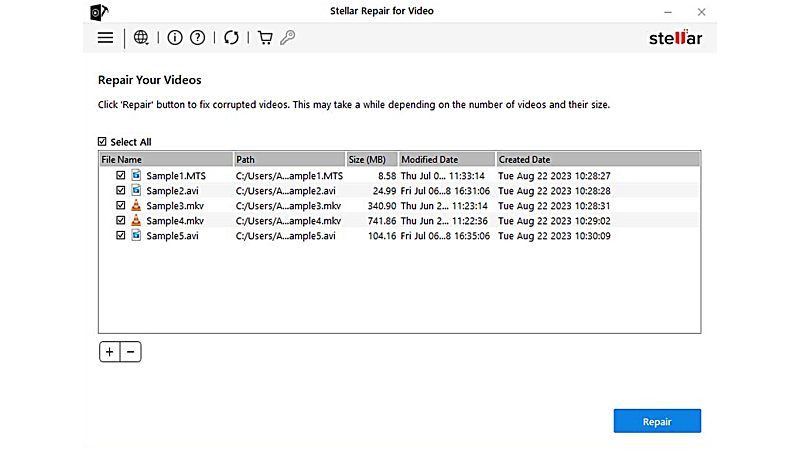
Stellar Repair for Video is a video repair software that helps you repair video files that stop playing, show a black screen, lose audio, or freeze. Many common problems come from broken file headers, interrupted writes, or bad metadata. This software scans the damaged file, rebuilds the container and headers, and creates a repaired copy so you can watch your footage again without changing the original file.
Using Stellar matters because video files often store irreplaceable moments - client shoots, weddings, or drone footage - and losing them can be costly. The app offers a quick Standard Repair for many everyday issues and an Advanced Repair that uses a healthy reference file to rebuild badly damaged frames. Using the trial first, you can check whether Stellar can repair your video before buying a license.
This guide shows how Stellar Repair for Video works, the types of issues it can fix, and safe ways to use it. You'll get clear steps to prepare your files, perform repairs, and evaluate the results. Follow these practices to improve your chance of recovery and avoid further damage to the original media.
What is Stellar Repair for Video?
Stellar Repair for Video is a tool that helps you fix broken or corrupt video files. If a video won't play, shows a black screen, has no sound, or skips frames, this software tries to repair the file so you can watch it again. It works by scanning the damaged file, rebuilding the file structure, and saving a recovered copy without changing the original. This makes it a useful option for anyone who needs to repair video file quickly - from hobbyists to pro videographers.
Overview and core purpose
The main purpose of Stellar Repair for Video is to repair video files that were damaged during recording, transfer, or editing. It targets common issues like header corruption, missing frames, codec errors, and audio-video sync problems. The software is designed to be simple: add the broken file, run a scan, preview the repaired clip, and save the result. For more complex corruption, the tool offers an Advanced Repair mode that uses a healthy reference file shot on the same device to rebuild damaged frames more accurately.
Supported platforms and editions (Windows, macOS, editions/pricing)
Stellar Repair for Video runs on both Windows and macOS. Editions usually include a basic Free/Trial version, a Standard or Professional paid version, and a Premium or Technician tier with extra features like batch repair and support for more formats. The trial often lets you scan and preview repairs but may limit saving or export size. Paid plans differ by features and licensing (single user vs business). Check Stellar's official site for the latest pricing and exact feature lists.
Key points:
- Platforms: Windows, macOS
- Common editions: Trial/Free, Standard/Professional, Premium/Technician
- Typical limits: Preview allowed in trial; saving may be restricted until purchase
If you rely on video in your work, knowing which edition fits your needs helps avoid downtime and saves money when you must repair important footage.
Which video problems can Stellar Repair for Video fix?
Stellar Repair for Video can help when a file will not play or looks wrong. It is made to repair video files so you can watch them again. Below are the common signs of damage and the usual technical causes. This helps you spot if Stellar might fix your file.
Common corruption symptoms
- Black screen: The video opens but shows a black or blank picture.
- No audio: Video plays but sound is missing or silent.
- Stuttering or freezing: Playback jumps, lags, or freezes mid clip.
- Truncated files: The file stops early or is cut off before the end.
- Corrupt thumbnails: Preview images are blank or wrong.
- Codec errors: Player shows "unsupported codec" or refuses to play.
- Sync issues: Audio is out of sync with the picture.
These symptoms are easy to spot. If you see any of them, try playing the file in a reliable player like VLC first. If it still fails, Stellar Repair for Video may be able to recover it.
Technical causes of corruption
- Header damage: File headers store essential playback info. If the header is broken, players can't read the file.
- Codec mismatch: The video uses a codec that is missing or mismatched, causing errors or no playback.
- Interrupted writes: Power loss, camera crash, or removing a memory card while recording can leave files incomplete.
- File system errors: Bad sectors or corruption on the storage device (SD card, HDD) can corrupt files.
- Improper conversion or editing: Interruptions during conversion or broken export from editing software can corrupt frames or metadata.
- Fragmentation or missing frames: Parts of the video stream are missing, causing artifacts or jumps.
Table - How symptoms map to common causes
| Symptom | Likely cause(s) | Repair chance with Stellar |
|---|---|---|
| Black screen | Header damage, missing video stream | Medium-High |
| No audio | Audio stream missing, codec issue | Medium |
| Stuttering/freezing | Missing frames, fragmented file | Medium |
| Truncated file | Interrupted write, incomplete file | High (often recoverable) |
| Codec error | Unsupported codec, mismatched container | Low-Medium (may need codec) |
| Sync issues | Corrupt timestamps, missing frames | Medium |
Stellar Repair for Video works best when the core video or audio streams exist but are wrapped in a damaged container or have header/metadata errors. For files missing large chunks or stored on heavily damaged drives, success drops and professional recovery might be needed.
If you often lose files, follow simple habits: stop using the storage device after a failed recording, copy files immediately, and keep backups. These steps raise the chance that Stellar Repair for Video can fix your videos.
Supported formats, codecs and devices
Stellar Repair for Video can repair video files from many common formats, codecs, and recording devices. Knowing what it supports helps you decide if it is the right tool for your broken files. Below is a clear, simple guide to formats, codecs, and devices the software handles and what to do when something is not supported.
File formats (MP4, MOV, AVI, MKV, MTS, etc.)
- Common formats supported: MP4, MOV, AVI, MKV, MTS, M2TS, 3GP, FLV, WMV, F4V.
- Why it matters: The container (format) holds video, audio, and metadata. If the container is corrupt, Stellar rebuilds it so players can read the streams.
- What to try first: If your file format is listed above, Stellar often can scan and repair it. If it's an uncommon container, try converting a copy to a common format and then run a repair on the converted file.
Codecs (H.264, H.265/HEVC, MPEG 4, etc.)
- Common codecs supported: H.264 (AVC), H.265 (HEVC), MPEG 4, MJPEG, ProRes, DV, and more.
- Codec vs container: Stellar fixes the file container and damaged headers; it does not install missing codecs on your system. If a player says the codec is missing, install the codec or test in VLC before assuming the file is corrupt.
- When codec causes failure: If the video stream itself is encoded with a rare codec and frames are intact, Stellar can still rebuild the container so a suitable player and codec can play it.
Cameras, drones, phones, dashcams and storage media compatibility
- Devices covered: DSLR and mirrorless cameras (Canon, Nikon, Sony), action cams (GoPro), drones (DJI), smartphones (iPhone, Android), camcorders, and dashcams.
- Storage media: SD cards, microSD cards, compact flash, SSDs, USB drives, and HDDs. Stellar works on files copied from these devices; if the storage has hardware damage, copy what you can to a healthy drive first.
- Special cases: Some devices use unique file structures or create fragmented files (dashcams, loop recording). Stellar can often repair these but results vary with fragmentation level.
Table - Quick support checklist
| Item | Typical support | Tip |
|---|---|---|
| MP4 / MOV / AVI / MKV | Yes | Try Stellar trial to preview repair |
| H.264 / H.265 / ProRes | Yes | Ensure player has required codec |
| GoPro / DJI / iPhone files | Yes | Use original file copy from device |
| Damaged SD card | File-level repair possible | Clone card before further work |
| Highly fragmented loop files | Partial repair possible | Use Advanced Repair with reference file |
Practical tips
- Always work on a copy. Never run repairs on the original file.
- Use a reference file for Advanced Repair. If frames are badly damaged, provide a healthy file from the same device and settings.
- Check codecs with VLC first. VLC often plays files other players cannot; if VLC plays it, no repair may be needed.
- Clone failing media when needed. If the SD card or drive shows errors, make an image copy and attempt repairs from the image.
Stellar Repair for Video supports most everyday formats and codecs used by hobbyists and professionals. It is most effective when the core streams exist but the container or metadata are damaged. For files from very old or proprietary devices, results can vary, but trying Stellar's trial to preview repair is a quick way to see if recovery is possible.
Key features and how they work
Stellar Repair for Video offers simple tools to repair video files and get damaged clips playing again. The app focuses on fixing the file container, rebuilding headers, and restoring audio/video sync. Below are the main features, how they work, and when to use each one.
Standard Repair vs Advanced Repair - when to use each
Standard Repair: Use this first. It scans the corrupt file, fixes header and metadata errors, and rebuilds the container. It works well for files with minor damage like black screens, missing thumbnails, or codec errors.
Advanced Repair: Use when Standard Repair gives poor results or when frames are badly damaged or distorted. Advanced Repair needs a reference file - a healthy clip shot on the same device with the same settings. The software uses that file to rebuild complex frame structures and recover damaged frames more accurately.
Batch repair, preview, and saving options
Batch repair: You can add multiple files and repair them in one go. This saves time if you have many similar corrupt clips from the same shoot.
Preview: After scanning, Stellar shows a preview of the repaired clip. The preview helps confirm whether the repair worked before saving. The trial often allows preview but may limit saving.
Saving options: Repaired files can be saved to any location on your computer. The software preserves the original file; it produces a new file so your original stays unchanged.
Non destructive repair process and reference file use
Non destructive workflow: Stellar never overwrites your original file during repair. Always work on a copy. This keeps the original intact for other recovery attempts or professional services.
Reference file usage: For Advanced Repair, choose a short, healthy video from the same camera and with the same format/codec. The software analyzes the reference file to learn the correct frame layout and timestamps, then applies that pattern to rebuild the damaged video.
| Feature | Use when | Benefit |
|---|---|---|
| Standard Repair | Minor header/metadata issues | Fast, good for most cases |
| Advanced Repair | Severe frame damage, artifacts | Better quality recovery with reference |
| Batch Repair | Many corrupted files from same device | Saves time |
| Preview | Before saving repaired file | Confirms success without saving |
| Non destructive | Always | Keeps original safe for other attempts |
Practical tips:
- Try Standard Repair first; use Advanced Repair if results are poor.
- Provide a short reference clip shot on the same device for best Advanced Repair results.
- Use batch mode for multiple clips but monitor each preview for quality.
- These features make Stellar Repair for Video a practical tool for editors, hobbyists, and pros who need to recover footage quickly. Its mix of quick fixes and a stronger Advanced Repair mode covers many real world corruption cases.
Step-by-step: Repairing a corrupted video with Stellar
This section shows a clear, simple walk-through to repair video files using Stellar Repair for Video. Follow these steps exactly to keep your original safe and get the best chance of recovery. The guide covers preparation, the repair process, and troubleshooting if things go wrong.
Preparing files and choosing a reference file
- Stop using the device: If a recording failed on a camera or card, remove the card and stop writing more files. Continued use can overwrite data.
- Work on copies: Copy the corrupted file(s) to a healthy computer drive. Never run repairs on the original media.
- Make a backup: Duplicate the copied file before you start any repair steps.
- Choose a reference file for Advanced Repair: If the video has severe frame damage, find a short, healthy clip from the same camera with the same resolution and codec. Put it next to the corrupted file on your computer.
Walkthrough: scan, preview, and save (Windows and macOS notes)
- Install and open Stellar Repair for Video. Use the trial to preview repairs first.
- Add files: Click Add File (or drag and drop) to load one or more corrupted videos.
- Start Standard Repair: Click Repair. The software scans and tries to fix headers, containers, and sync issues. Wait for the scan to finish.
- Preview the repaired file: Click Preview to watch the repaired clip. The trial usually allows previews so you can check results before saving.
- If preview looks good - Save: Choose Save and pick a folder. The repaired file is saved as a new file.
- If preview shows artifacts or errors - use Advanced Repair: Click Advanced Repair, then add the reference file you prepared. Run the advanced process and preview again.
- Save final file: When satisfied, save the repaired output to a safe drive. Keep the original copy backed up.
Platform notes:
- Windows: Installer adds context menus and integrates with Explorer. Ensure you run as admin if saving to protected folders.
- macOS: Grant permission to access folders when prompted. If preview fails, check QuickTime or VLC for playback.
Troubleshooting common failures (when repair fails or output has artifacts)
- Preview shows no improvement: Try Advanced Repair with a proper reference file from the same device.
- Playback still has codec errors: Test the repaired file in VLC. If VLC plays it, the issue may be your default player's codecs.
- Audio still missing or out of sync: Use Advanced Repair; if that fails, export audio separately using FFmpeg and re-mux with the repaired video.
- File won't load into Stellar: The file may be severely truncated or encrypted/DRM protected. Consider making a disk image of the source and trying recovery from the image.
- Storage errors during save: Ensure the save drive has enough space and no file system errors. Save to a different healthy drive if needed.
- Multiple files from same device fail: Use batch repair but also test one file with Advanced Repair and a reference to see if device settings caused the issue.
Quick checklist before retrying:
- Work from a copy, not original.
- Use a reference file from the same camera for Advanced Repair.
- Try VLC to rule out codec/player issues.
- Clone damaged media before doing more recovery attempts.
Following these steps gives you the best practical chance to repair video files with Stellar Repair for Video. If repeated attempts fail and the footage is critical, consider professional data recovery services that can work directly on the storage media.
Performance, limitations and accuracy
Stellar Repair for Video can often repair video files well, but results depend on file condition and cause of damage. This section explains how well it works, what it can't do, and how to judge repaired videos.
Typical success rates and factors that affect results
- Success factors: Repairs work best when the video and audio streams still exist and only the container, header, or timestamps are damaged.
- Common success scenarios: Truncated files from interrupted writes, broken headers, and small metadata errors often recover well.
- Lower success scenarios: Files with large missing chunks, heavy fragmentation, or physical media failure are harder to fix.
- Practical success rates: For everyday corruption (camera/card hiccups, bad exports) expect medium-high chances. For severely damaged or partially overwritten files, chances fall to low-medium.
Table - What affects repair success
| Factor | Effect on success | Tip |
|---|---|---|
| Header/metadata damage | Often repairable | Use Standard Repair first |
| Interrupted write (truncated) | High chance of recovery | Work from a copy immediately |
| Missing frames/fragmentation | Medium chance | Try Advanced Repair with reference |
| Physical media failure | Low chance | Clone media before further attempts |
| Uncommon/proprietary codec | Variable | Test in VLC; use reference file |
Known limitations (severely fragmented files, missing key frames, DRM)
- Severely fragmented files: If the video was split into many fragments (common with loop-recording dashcams), Stellar may not reassemble all parts correctly.
- Missing key frames: If key frames are gone, reconstructed video may show artifacts or long black patches. Advanced Repair can help but cannot create missing original frames.
- Overwritten data: If parts of the file were overwritten by new data, recovery is unlikely.
- DRM or encrypted files: Stellar cannot break DRM or decrypt protected streams.
- Hardware-level damage: If the storage device has physical failure, recovering files may require specialist hardware services first.
How to evaluate repair quality (visual/audio checks, metadata)
- Watch full clip: Play the entire repaired video to check for freezes, frame drops, and sync issues.
- Check audio: Listen for missing segments, clicks, or sync drift.
- Compare metadata: Use media info tools (MediaInfo, VLC codec details) to compare duration, codec, and bitrate between original (if readable) and repaired file.
- Look for artifacts: Color shifts, blockiness, or repeated frames can indicate partial recovery.
- Use side-by-side test: If you have a reference file, compare it side-by-side to spot differences.
Quick checklist to confirm a good repair:
- Plays start to end without major freezes.
- Audio remains in sync and complete.
- No large black sections or severe pixelation.
- Metadata (duration, frame rate) close to expected.
Stellar Repair for Video is a strong first step for many common corruption cases. For critical footage with poor results, stop further attempts on the original media, clone the drive, and consider professional recovery to avoid further data loss.
Alternatives and when to choose them
If Stellar Repair for Video can't fix a clip, other tools or services may help. Below are common alternatives, when to use each, and quick pros/cons to guide your choice.
Free tools and open-source options (VLC, FFmpeg)
- VLC
- Use when a file won't play. VLC can often play damaged files or auto-repair AVI container issues.
- Pros: Free, easy to try, plays many formats.
- Cons: Limited repair; no advanced frame rebuilding.
- Digital Video Repair
- Use when some audio/video data were lost or a file's index/header is corrupted, making it unplayable in standard players.
- Pros: Simple, "one-click" repair process. Very fast repair. High success rate. Retains its original quality (no re-encoding).
- Cons: Limited format support. Windows-only application.
- FFmpeg
- Use to remux, extract streams, or rebuild containers via command line (e.g., remux MP4 to MKV).
- Pros: Powerful, scriptable, can salvage streams and re-encode.
- Cons: Steep learning curve; no guided repair UI.
- Untruncated / H264-tools
- Use for low-level fixes on truncated H.264 streams.
- Pros: Can recover data when container is gone.
- Cons: Technical and format-specific.
Free/open-source quick guide
| Tool | Best for | Skill level |
|---|---|---|
| VLC | Playback / simple repair attempts | Beginner |
| Digital Video Repair | Quick repair of corrupted AVI/MOV/MP4 | Beginner |
| FFmpeg | Remuxing, stream extraction, re-encode | Intermediate-Advanced |
| Format-specific tools | Truncated stream fixes | Advanced |
Competitive commercial tools (Wondershare Repairit, Aiseesoft, Grau GmbH)
- Wondershare Repairit, Aiseesoft Video Repair
- Similar GUI tools that claim to repair corrupted MP4, MOV, AVI files.
- Pros: Friendly interfaces, trial previews, batch modes.
- Cons: Varying success rates; advanced fixes may be paid.
- Grau GmbH MPEG-Repair (for pros)
- Specialized tools for broadcast/pro video formats.
- Pros: Professional recovery for MPEG/transport streams.
- Cons: Expensive; technical.
Quick comparison table
| Tool category | Strength | When to pick |
|---|---|---|
| GUI commercial repair | Ease of use, preview | If you want fast, guided repair |
| Professional broadcast tools | High-quality recovery for pro formats | For pro footage and strict quality needs |
When professional forensic recovery is necessary
- Consider professional recovery when:
- The storage device has physical damage or unreadable sectors.
- The footage is highly valuable (weddings, commercial shoots) and all software attempts fail.
- Files are heavily fragmented, overwritten, or use proprietary formats with no software fixes.
- Professional services can image drives, rebuild file systems, and use lab tools to recover media. Cost and time are higher, but chances improve for critical data.
How to choose the right path (decision flow)
- Try VLC to rule out player/codec issues.
- Use FFmpeg to remux or extract streams if you are comfortable with commands.
- Run a GUI commercial repair tool trial (Stellar, Wondershare) to preview results.
- If software fails and footage is critical, stop further writes, clone the media, and contact a professional recovery service.
Practical tips:
- Always work from copies.
- Test multiple tools - one tool's failure doesn't mean all will fail.
- For batch jobs, compare trial previews before buying a paid license.
Choosing the right alternative depends on your skills, budget, and how important the footage is. Start simple and escalate to pro help when the clip's value justifies the cost.
Best practices to avoid future video corruption
Good habits cut the chance you'll need to repair video later. Follow these simple steps to keep files safe and make recovery easier if something goes wrong.
Safe recording and file transfer habits
- Stop recording if errors appear. If a camera shows an error or the card ejects, stop and remove power immediately.
- Use quality media. Buy branded SD/CF cards and replace them regularly after heavy use.
- Format in camera (not quick-format on PC). Camera formatting prepares the card for that device and reduces file system errors.
- Avoid filling the card to 100%. Leave some free space to reduce fragmentation and write errors.
- Eject safely. Use OS eject tools before removing cards or USB drives to avoid interrupted writes.
Backups, checksums and regular verification
- Copy files off the card ASAP. Move footage to a computer or drive right after shooting.
- Make two backups. Use a 3-2-1 rule: 3 copies, 2 different media (SSD/HDD), 1 offsite/cloud.
- Verify copies with checksums. Use tools (md5/sha1) to ensure copied files match originals.
- Keep a working copy and an archive copy. Edit from the working copy; keep archive untouched.
- Run periodic checks. Open sample files after copying to confirm playable clips.
Table - Backup checklist
| Step | Action | Why |
|---|---|---|
| 1 | Copy off card immediately | Prevents further card wear |
| 2 | Make two backups on different drives | Guards against single-drive failure |
| 3 | Verify with checksum | Confirms copy integrity |
| 4 | Store one copy offsite/cloud | Protects against local disasters |
| 5 | Test a sample file | Quick check that files are intact |
Recommended workflow for pros (editors, videographers, drone pilots)
- In the field: Carry at least two spare cards and a backup drive. Use a validated card reader and copy immediately.
- On return: Ingest footage to a fast internal or RAID drive. Create checksums and save one copy to a separate backup drive.
- During editing: Work from a duplicate working folder; never edit originals. Keep autosave and versioning enabled in your NLE.
- Long term: Archive projects to cold storage (LTO, cloud archive) and refresh archives every few years to prevent bit rot.
Practical tips:
- Label cards with shoot info and date.
- Use card readers instead of plugging cameras into computers.
- Replace cards after errors or long use cycles.
- Consider simple automation: copying + checksum scripts to reduce human error.
Following these best practices builds strong protection around your footage. They reduce the odds you'll need to repair video and increase the chances of a successful recovery if corruption still happens.
Pricing, trial limits and license considerations
Stellar Repair for Video offers several plans and a free trial. Choosing the right one depends on how often you need to repair video, what formats you use, and whether you need batch or commercial licensing.
What the free trial shows/limits (preview size, export restrictions)
- Preview only: The trial usually lets you scan and preview repaired videos so you can see if recovery is possible.
- Save/export restricted: Trials commonly block saving repaired files or limit the export length/quality. You can confirm repair success but must buy a license to export full videos.
- Limited batch use: Batch repair may be disabled or limited in the trial.
- Watermarks: Some versions place a watermark on saved output in trial or demo modes (check current trial terms).
- Platform parity: Trial features are similar on Windows and macOS, but exact limits vary by release-always test the file you need to fix with the trial first.
Table - Typical trial limits
| Trial feature | Typical behavior | Tip |
|---|---|---|
| Scan & Preview | Allowed | Use to verify repair quality |
| Save/Export | Blocked or limited | Purchase to export full files |
| Batch Repair | Often limited | Test one file first |
| Watermark | Sometimes applied | Check demo output carefully |
Choosing between Standard/Professional/Premium (feature vs cost)
- Standard / Home: Best for hobbyists who repair occasional clips. Often includes single-file repair and basic formats. Lower cost.
- Professional / Technician: Adds batch repair, Advanced Repair, commercial use rights, and support for more formats. Good for freelancers and small studios. Mid-range cost.
- Premium / Toolkit: Highest tier with unlimited repairs, priority support, and enterprise licensing. Suited for media houses and businesses that repair video regularly. Higher cost.
Comparison table - Edition at a glance
| Edition | Best for | Key extras |
|---|---|---|
| Standard | Casual users | Single repairs, basic formats |
| Professional | Freelancers / pros | Batch, Advanced Repair, more formats |
| Premium/Technician | Studios / businesses | Unlimited use, priority support, commercial license |
Practical buying tips:
- Use the trial to confirm Stellar can repair your file before buying.
- If you have many corrupted clips from the same shoot, Professional may save money via batch/advanced features.
- Check license type: single-user vs multi-user vs business - especially if multiple editors will use the software.
- Look for subscription vs perpetual license options. A one-time purchase may be cheaper long term if you repair files occasionally.
Always verify current pricing and exact feature lists on Stellar's official site before purchase, and test with the trial to confirm the software can repair your specific corrupted video files.
FAQ (concise answers)
If VLC cannot play the file, Stellar Repair for Video may still help. VLC is forgiving, so if VLC fails, the file likely has container/header damage or missing streams. Run Stellar's scan and preview - many broken files become playable after repair.
No. Stellar Repair for Video repairs corrupt files but does not undelete or recover files from formatted or damaged media. For deleted files, use file-recovery tools (or a data-recovery service) first, then repair any recovered files with Stellar.
Stellar Repair for Video works locally on your computer. The repair process does not require uploading files to the cloud (unless you choose cloud backup). Keep copies local and follow safe practices: work on duplicates and avoid sharing originals.
Common containers (MP4, MOV, AVI, MKV, MTS, M2TS, 3GP, FLV, WMV) and codecs like H.264, H.265/HEVC, MPEG-4, ProRes, and others are supported. If a codec is missing on your system, test playback in VLC or install the codec; Stellar focuses on container/header repair, not codec installation.
Repair time depends on file size, corruption level, and system speed. Small clips (under a few hundred MB) often scan in minutes; multi-GB files or heavy corruption can take much longer. Batch jobs increase total time.
Stellar repairs the container and metadata; it does not re-encode by default, so original quality is preserved when streams are intact. Severe damage may produce artifacts if frames are missing; Advanced Repair can improve results but cannot recreate lost original data.
No. Advanced Repair needs a short healthy clip from the same device and settings to rebuild complex frame structures. Without a reference, Advanced Repair cannot model the correct frame/timestamp layout.
Conclusion and recommended next steps
Stellar Repair for Video is a practical tool to repair video files that suffer from header errors, truncated writes, codec mismatches, or sync problems. It offers a quick Standard Repair for most common faults and a stronger Advanced Repair that uses a reference file to rebuild badly damaged frames. Use the trial to preview results, always work on copies, and prefer batch mode when you have many similar clips.
Recommended next steps:
- Try the trial: Scan and preview one damaged file to see if Stellar can repair it.
- Use Standard first; Advanced if needed: Run Standard Repair, then Advanced Repair with a matching reference file if artifacts remain.
- Work on copies and clone damaged media: Never overwrite originals; clone failing cards/drives if possible.
- Test repaired files in VLC: Confirm playback, audio sync, and metadata before finalizing.
- Escalate to pros for critical footage: If software fails and the footage matters, stop attempts on the original and contact professional recovery.
Quick takeaway: Stellar Repair for Video is a strong first-step tool to recover many real-world corrupt files. Test with the free preview, follow safe handling practices, and escalate to professional recovery when footage is irreplaceable.